All posts by Kerika

About Kerika

Kerika is the only task management tool that's designed specially for global, remote teams.

A new Welcome Experience for new users

Kerika is welcoming and friendly for people who are already familiar with online project boards, but what about people who have never used anything like Kerika before?

To make Kerika more welcoming for new users, we have created a new Welcome Experience: a series of simple callouts that can orient new users to the Kerika user interface, within 30 seconds.

We understand only too well that these kinds of callouts have been misused by many apps and websites, and that — when badly implemented — they can be annoying and ineffective, so we have take a good deal of care to design the Kerika Welcome Experience:

  • It is short. Seriously. We timed it so that it will take well only about 30 seconds of a user’s time.
  • It is personalized and relevant: it figures out whether someone just signed up fresh at our website, or whether that person joined after accepting an invitation to someone’s else project.

If you are a new user, let us know whether it worked!

Auto-Numbering: a new Kerika feature

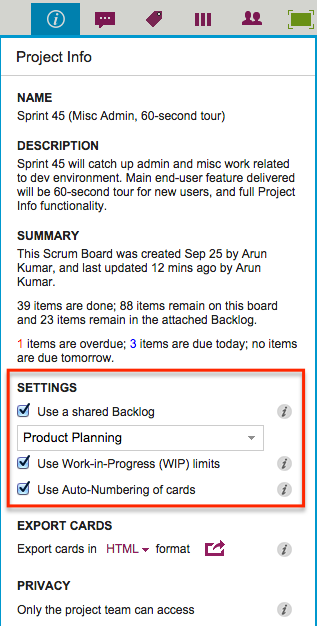
We have a new feature in Kerika: a simple way to add numbers to your cards, for both Task Boards and Scrum Boards.

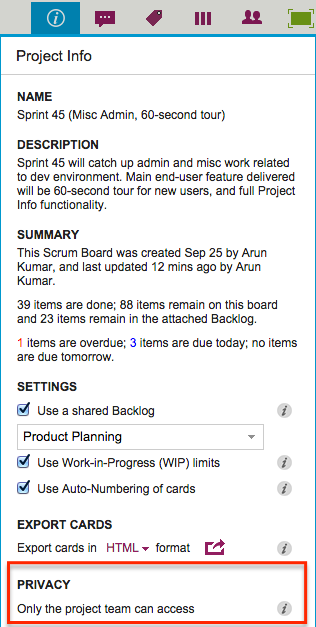
Project Leaders (and, of course, the Account Owner) can access this feature by clicking on the Project Info button, which appears on the top-right area of a Kerika board:

Settings
Settings

Auto-Numbering can be turned ON or OFF at any time.

It is a simple feature, intended primarily to help manage large numbers of cards on a single board, e.g. a Help Desk team using Kerika as a ticket management system.

In ticket management or asset tracking scenarios, the titles of many cards may be similar, e.g. “User has trouble logging in”.

A more useful way of distinguishing between cards might be through the card’s numbers, e.g. “104 User has trouble logging in” and “242 User has trouble logging in.”

When Auto-Numbering is turned ON, Kerika will automatically insert a number as a prefix to new cards that are added to that board.

  • Numbers are sequential: for example, the first card would have “1” added as a prefix, the second card would have “2” added as a prefix, etc.
  • Auto-Numbering can be stopped at any time, and then new cards added to the board won’t have numbers added to the card titles.
  • Auto-Numbering can be resumed after a pause, the numbering will intelligently figure out how many cards are on the board by excluding the Backlog and the Trash, as well as looking at the last number used.
  • The numbers are simple text, added as a prefix: they can be edited by any Team Member, and even removed.

Making projects viewable by the public: a new Kerika feature

Most users work on private projects: i.e. projects that are accessible only to people added to the project team.

But some folks find it useful to have their projects viewable by everyone, typically because they are working on nonprofit causes, like WIKISPEED.

WIKISPEED publicizes its projects because it helps attract new volunteers to their cause, and this is actually a pretty smart way for nonprofits to showcase their work.

Kerika has always had an option for people to have all their projects made viewable by the public, but even nonprofits, for example, may have some Kerika boards that they don’t want to share with the rest of the world.

Well, with our newest release, it is possible for the Project Leader (or Account Owner) to make individual projects open to the public to view.

A project can be easily switched from Private to Public, and back again, using the Project Info button that’s available on the top-right of every Kerika board:

Privacy
Privacy

The privacy choices are as follows:

  • Only the project team can access: this is the default setting, and it means that unless people are added to the project team, they won’t be able to view it — or even find it using the Search function.
  • Anyone, anywhere can view: this means the project is “public” — it can be found through search, and anyone who knows the URL of the project can view it. (But, they still won’t be able to make changes.)

When a project is made Public, all the documents contained within it — on all the cards and canvases that make up that board — are also made viewable to the public.

This means, for example, that if your Kerika+Google Whiteboard or Task Board is made available to the public, all the documents in that board’s Google Docs folder are also made viewable by the public.

(And Google indexes all public Google Docs, the project could be found in more than one way, depending upon who is searching for it.)

One caveat: users of premium Google Apps, e.g. Google Apps for Business, cannot make their projects open to the public, because of limitations imposed by Google.

Adding a Twitter feed to your Kerika canvas

You may know already that Kerika’s patented canvases are a great way to share your ideas and content, like drawing process flow diagrams, flowcharts, etc., and these canvases can also include content from your laptop or the Web.

For example, you can drag-and-drop a file from your desktop, and it will get added to your Kerika canvas, and stored and shared automatically with your team members using Box or Google (depending upon whether you are using Kerika+Box or Kerika+Google).

When you add Web content to a canvas, Kerika is pretty smart about figuring out what that URL is that you just provided.

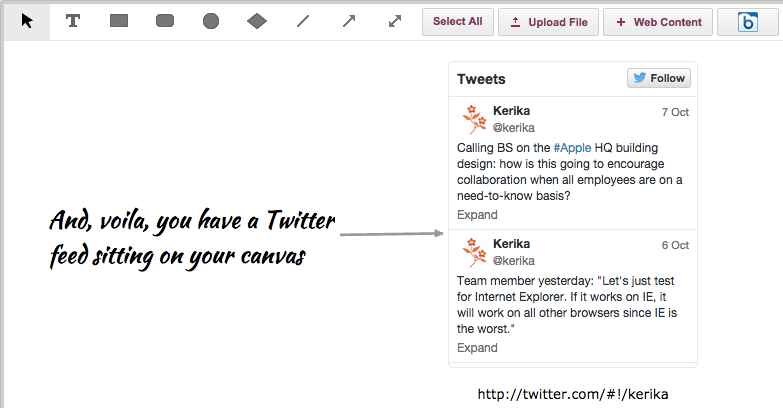
So, for example, Kerika makes it really easy to add a Twitter feed: all you have to do is click on the “+Web Content” button on your canvas toolbar…

Adding Twitter feeds to a canvas, step 1

You can add a Twitter feed simply by using the user’s Twitter handle, e.g. “@kerika” would give you Kerika’s Twitter feed right on your canvas:

Adding a Twitter feed to a canvas, part 2

And that’s all it takes!


Google was flaky for 2 hours today!

Between the hours of 9AM and 11AM PST, Google’s authentication service — which we used to sign in users of Kerika+Google — kept having problems that affected people at random.

It was a tough morning for us, dealing with the flood of “504 System Timeout” errors coming back from Google, and feeling helpless that we couldn’t provide the kind of high-quality user experience that is at the core of the Kerika brand.

The problems finally went away by themselves, but a total of 31 Kerika users were affected and we are reaching out to each of them individually to apologize for the inconvenience, and explain what happened.

This is one of those situations where Kerika cannot do anything to fix the problem: if you signed up as a Kerika+Google user, when you try to login to Kerika you are automatically redirected to Google’s authentication service, which then comes back to Kerika to give us your identity information.

Then, we use the identity information to log you into the correct Kerika account.

Normally, all this happens really fast: you click on the Sign In button at Kerika, Kerika redirects your browser to Google, Google responds immediately, and within a couple of seconds you are logged into Kerika.

It all happens so fast and smoothly, 99.999% of the time, that most people are completely unaware that their browser was even redirected to Google in the first place — it’s something you might notice only if you have a very slow WiFi connection, and you are paying close attention to your browser’s status bar.

But every once in a while, Google won’t respond when you get redirected there by Kerika. In that case we retry again several times, and then finally Kerika does a “timeout”: it gives up.

(This problem has happened before, and as software developers ourselves, we are, of course, very sympathetic to other software companies that experience occasional bugs and hiccups, but Google can be irksome in their lack of transparency.)

This happens so infrequently that we didn’t really have any special code in place to tell users why they were not able to login, but that’s going to change starting tomorrow: if Google’s servers are not responding fast enough, we will show a special page to the user explaining what’s happening, so they understand the situation better.

 

Kerika @ PMI Olympia Chapter

Arun Kumar, Kerika’s CEO, and Beth Albertson, Solutions Architect from Washington State’s Department of Social and Health Services will be jointly presenting at the November 18, 2014 dinner meeting of the Project Management Institute’s Olympia Chapter.

The topic will be  Using web-based work management for distributed and agile teams.

If you are interested in project management, and are close to the Olympia, Washington area, please sign up for this dinner event!

PMI
PMI dinner

Kerika @ BoxWorks14

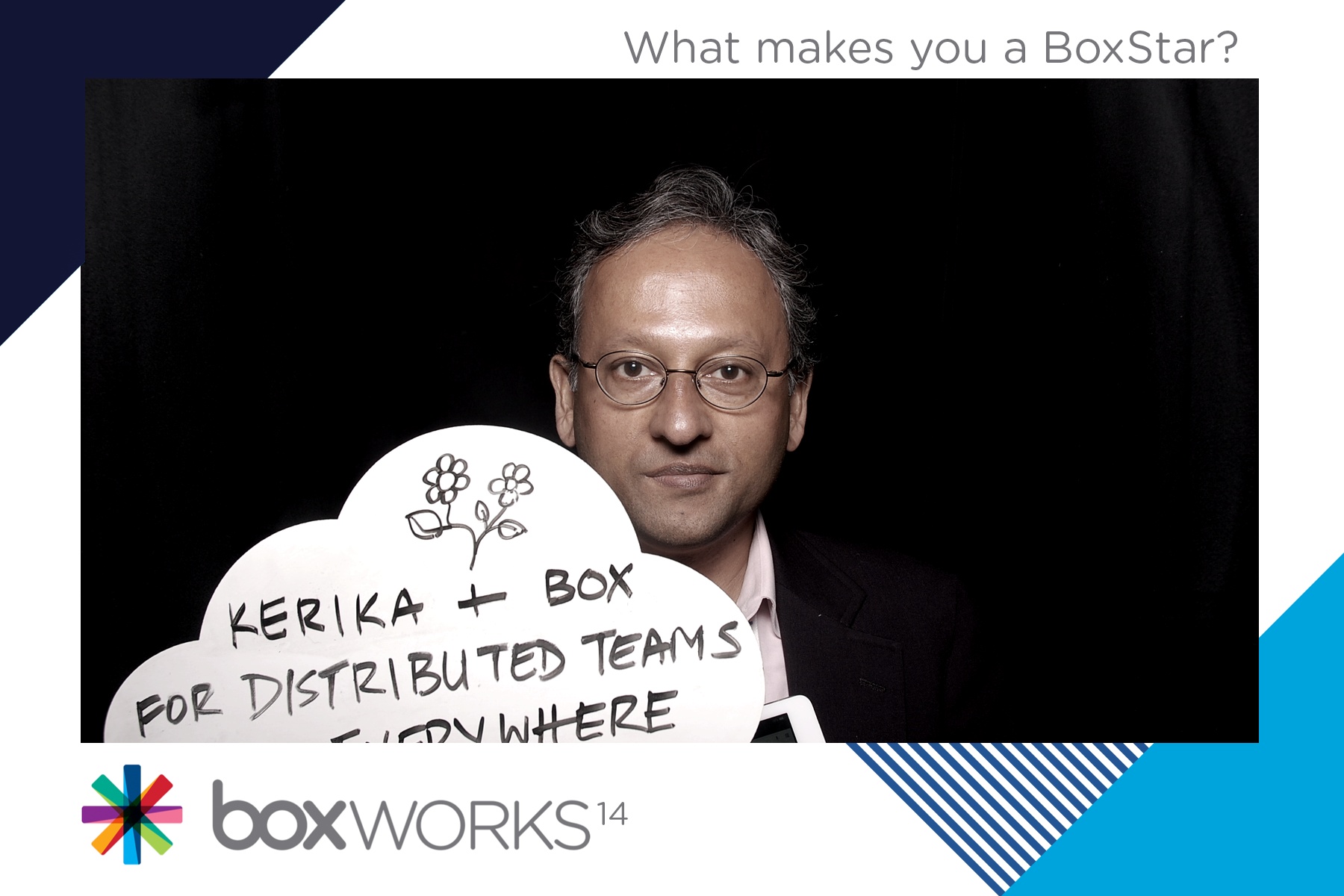
We were at Boxworks14 last week, and had a great time!

We met a bunch of interesting folks, including Heidi Williams, Senior Director of Platform Engineering, who — along with Peter Rexer and others from her team — gave some really insightful deep-dives into Box’s technology stack.

(Among other things we learned that we could improve the Kerika user experience by changing the way we do OAuth 2.0 with Box.)

Keynote speeches were amazing: the hyper-kinetic Aaron Levie made for a rousing start, but the real star was Jared Leto who not only brought his Oscar onstage, but in a jaw-dropping move handed it over the audience for people to take selfies with while he blithely continued with his “Fireside Chat”.

Jared’s move even upstaged Aaron, which is pretty hard to do (as you will know, if you have ever encountered Aaron in the flesh…)

Other great speakers included Jim Collins, author of Built to Last, Vinod Khosla of Khosla Ventures (and, originally, Kleiner Perkins and Sun Microsystems), and Andrew McAfee from MIT.

Using Kerika with Git

We often get asked if Kerika has an integration with Git.  The short answer is “No”, but the longer answer is more nuanced…

We use Git ourselves for managing our own source code and other software assets.

Git was designed from the git go (ha!) to be used by distributed teams, having originated with the Linux kernel team, perhaps the most important distributed team in the whole world, so it made perfect sense for us to use it: it works across operating systems, and a number of simple GUIs are now available for managing your various source-code branches.

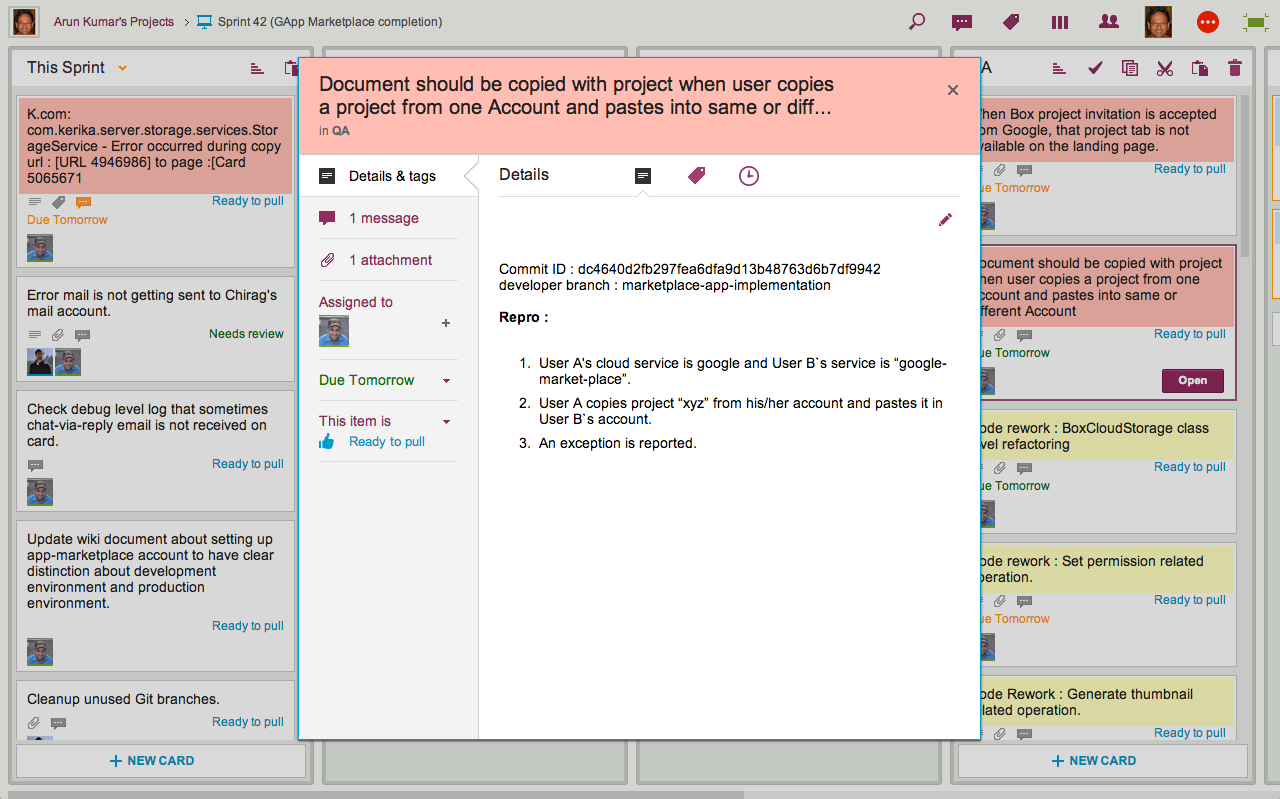
We simply embed the git references within cards on our project boards: sometimes in the chat conversation attached to a card, but more often within the card’s details.

Here’s an actual example of a bug that we fixed recently:

Example of Git integration

We use multiple Git branches at the same time, because we put every individual feature into a separate branch.

That’s not a fixed rule within Git itself; it’s just our own team’s practice, since it makes it easier for us to stick with a 2-week Sprint cycle: at the end of every 2 weeks we can see which features are complete, and pull these git branches together to build a new release.

So while Kerika doesn’t have a direct integration with Git, it’s pretty easy to use Kerika alongside Git, or other source management systems.