All posts by Kerika

About Kerika

Kerika is the only task management tool that's designed specially for global, remote teams.

Learning to live with email sandboxing

We spent hours recently trying to understand why a particular user wasn’t able to join her coworkers boards, before finally figuring out that it was her company’s “email sandboxing” that was messing up Kerika’s invitation flow

The problem was a real nuisance to debug, and we fear it will affect more of our users in the future so we are going to make a change to our invitation process to make sure it continues to work well for everyone.

Some background:

“Email sandboxing” refers to a process that tries to trap malicious URLs that are included in emails.  While the exact implementation varies by security vendor, the basic process is the same: use a virtual machine as a sandbox, and click on every URL contained within an email.

This can trap a lot of malware emails.  If the URLs are designed to be single-use only, i.e. the URL is unique and intended to be clicked upon just once, the sandbox will “explode” the mine before the user gets to it.

More sophisticated implementations of sandboxing will handle multi-use URLs by watching for return traffic from the sender’s machine, which would indicate (potential) attempts to download malicious software onto the recipient’s computer.

The problem with sandboxing:

The sandboxing approach takes the same brute force approach to all links, in all emails, without trying to understand the context of the email itself.

One consequence may be that “Unsubscribe” links contained in newsletters are clicked on automatically by the email sandbox virtual machine, so the recipient gets just one copy of a newsletter that she signed up for.

To get around this, systems that generate emails automatically, like a newsletter, have to move from a one-click unsubscribe (which would be more user-friendly) to a two-step unsubscribe process (which is more annoying to the user.)

You will have seen the two-step unsubscribe process more and more often in your own newsletters and other mass mailings: you click on the “Unsubscribe” link in a newsletter, and you land on a web page where you are asked to, once again, confirm that you want to unsubscribe.

The user might think this is a last-ditch attempt by the newsletter publisher to hold on to their readers, but it might actually be an attempt to safeguard the newsletter’s subscribers from their own brute force security implementations!

How this affected Kerika:

When you invite someone to join your Kerika board, as a Team Member, Board Admin or Visitor, the invitation gets sent to them by email as well from within the Kerika app.  The emailed invitation looks like this example:
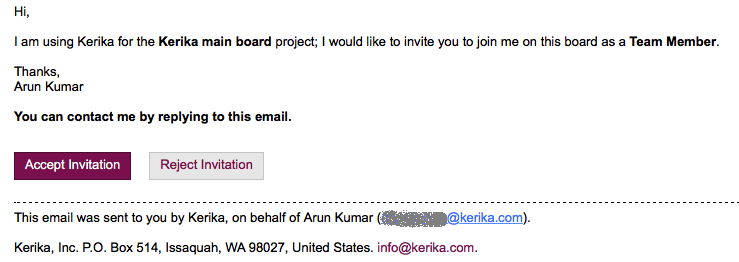
Example of invitation email

Example of invitation email

The email contains two links: the most prominent is the Accept Invitation, but there’s also the Reject Invitation.

Email sandboxing plays havoc with this sort of email invitation: there is an equal possibility that a particular sandbox will click on the Reject Invitation link before it clicks on the Accept Invitation link, which leads to a completely random experience for users who are being invited by the coworkers to join Kerika boards, since Kerika lets you act just once upon an invitation: once you accept it, or reject it, you can’t act upon it a second time.

How we discovered this problem:

One of our users, based in California ,was trying — repeatedly and unsuccessfully — to invite another user, based in Taiwan, to join one of her boards, and the process kept failing.

And for the longest time we couldn’t figure out why!

Our debugging seemed to suggest Kerika itself was somehow auto-rejecting invitations on the user’s behalf, which had us really worried about a serious bug in the server before one of our developers got the idea that perhaps the problem was with the user’s email system, and not Kerika.

When he examined the headers on an email we got from the affected user, he found references like these:

Received: from mail1.bemta12.messagelabs.com (mail1.bemta12.messagelabs.com [216.82.251.10])

A little more sleuthing led us to Symantec’s “threat protection” service, which is one of the common email sandboxing systems out there.

How we are fixing this:

We are moving to a two-step process for people who want to reject invitations that come to them by email: clicking on the Reject Invitation will now take you to a Web page where you will be asked to confirm that you want to reject the invitation.

It’s one more step for users, and not the kind of superb user experience we aim for, but without this there’s no way for us to make sure that the best intentions of security vendors don’t end up crippling our own business!
Bug, fixed: now the Board Summary excludes cards in Trash

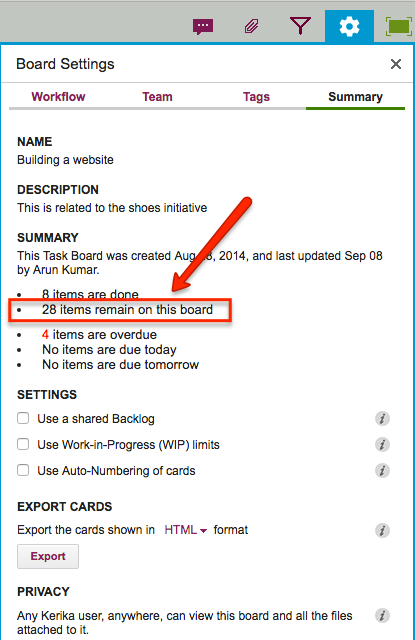
Thanks to one of our users from Washington State’s Administrative Office of the Courts for pointing this out: it turned out that the count of “remaining” cards in the Board Summary was including items that were in the Trash, which was misleading.

This has now been fixed: the count shown in the Board Summary gives you a better idea of what work remains.

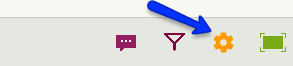
To access the Board Summary on any Task Board or Scrum Board, click on the Board Summary button shown on the top-right of the Kerika app:

Board Settings is highlighted

Clicking on this button will show a summary of the board, like in this example:

Remaining work
Remaining work

In the example above, the count of “28 items remain” now properly excludes any items that are in the board’s Trash.

Repro, Cause & Fix: Using Kerika to Fix Bugs

Interested in using Kerika for software development? Here’s a practical example, taken from one of our own boards, that highlights best practices for tracking, investigating and fixing bugs.

First, a look at our Workflow

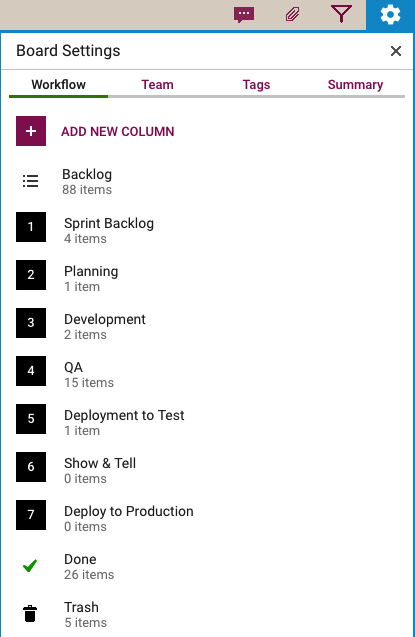
Every software development team will want to set up its own workflow, of course, reflecting its internal dynamics and available resources.  Here’s the Scrum Board workflow we use in our team:

Scrum Workflow
Scrum Workflow

Our Scrum Boards are organized with these columns:

The Backlog contains all the ideas, large and small, that we have on our product road map: in Scrum terminology, it’s our Product Backlog.

The Sprint Backlog is the set of cards that we pulled from the Backlog at the start of this Sprint: right now, only 4 items are left as we are close to the end of our 2-week Sprint Cycle.

Within each Sprint, cards are picked up developers and first moved into the Planning column, where detailed analysis of the work to be done is completed.

Depending upon the complexity of a particular work item, a developer may request a design review before moving the card further into the Development column.

Developers do their own unit testing as part of the Development phase, but then the work item moves further down to the the QA column which frequently includes formal code review.  (More on that below…)

After a bug has been fixed, had its code reviewed and passed unit testing, it gets Deployed to the Test environment.

We usually wait until the 2-week Sprint is over before asking the entire team to present the entire Sprint’s output to the Product Owner for the Show & Tell; this avoids distracting the team midway through the Sprint.

Once the output of a Sprint has passed the Show & Tell, it can then be Deployed to Production.

The Done column shows all the work that got done in this Sprint.  That’s where all cards are supposed to go, but sometimes a work item is abandoned and moved to the Trash.

(Side note: we sometimes use WIP Limits to make sure that people are not over-committed to work, but this is not a consistent practice within our team.)

Logging the bug

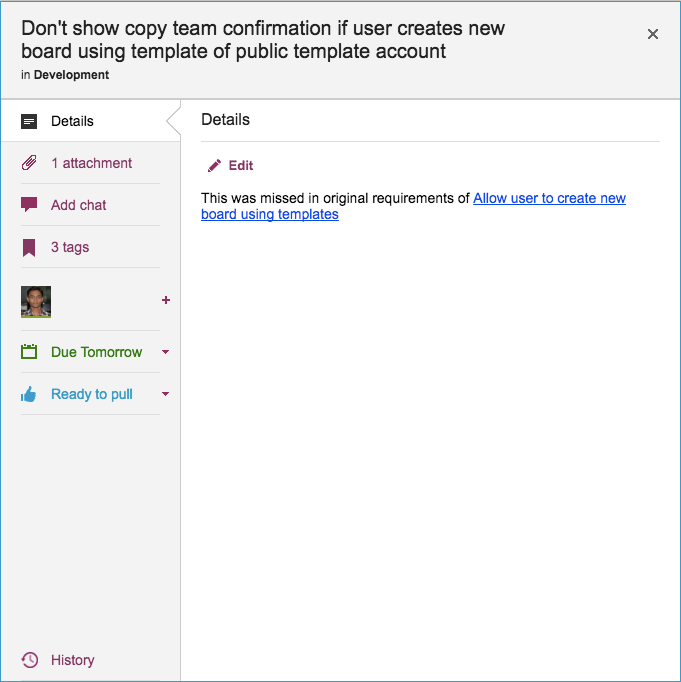
Now, let’s take a look at an example of an actual bug card that was worked on by our team:

Example of a bug tracked as a Kerika card

(This particular bug doesn’t have a lot in the details, because it is related to another task that is currently underway, and Kerika makes it easy to link cards, canvases or boards.)

Some bugs go into the Product Backlog, if they are not considered especially urgent, but others go straight into the Sprint Backlog if they represent serious production problems that might affect user’s access or the reliability of their data.

Adding bugs to the Product Backlog lets us process bugs along with other development, e.g. of new features, in the same way: everything can be prioritized by the Product Owner and handled through a consistent workflow.

Documenting the bug

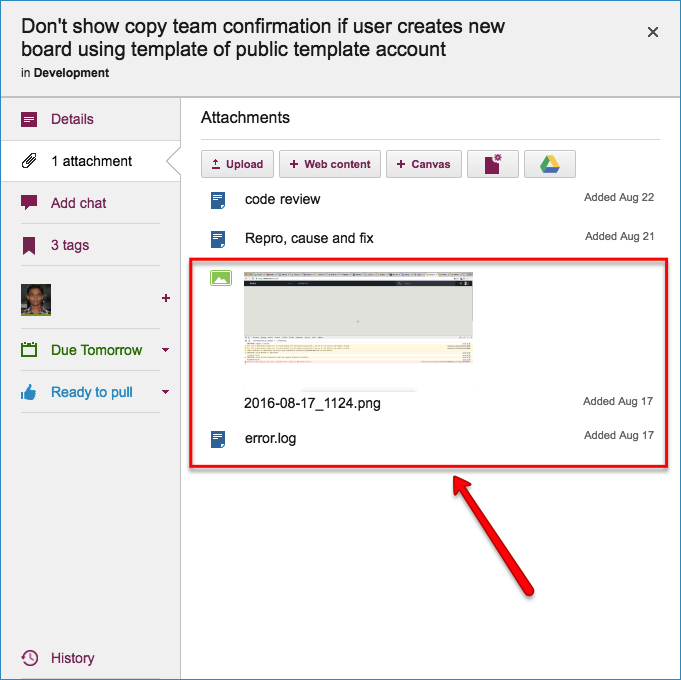
Our bug reports typically come with two attachments; at least one of these should always be included so that the developer has a clear starting point for her work:

  • A screenshot showing the user experience (if the bug can be observed directly by the user.)
  • An excerpt from the error log, if the server reported any errors around the time the bug was observed.
Original bug report documents

Kerika makes it easy to attach any kind of content to any card, canvas or board: for bug fixing, particularly in the analysis phase, this is very useful if the user needs to include URLs, material from Sourceforge or similar sites, links to Github, etc.

Repro, Cause & Fix

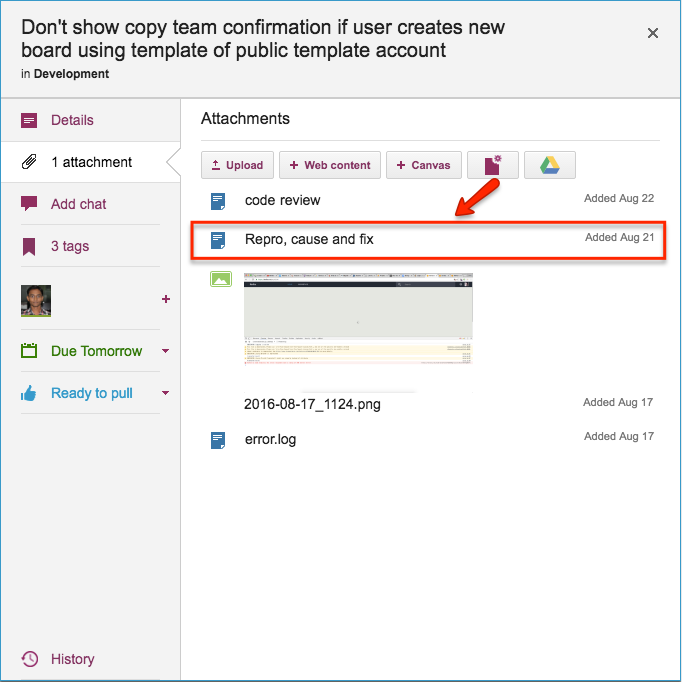
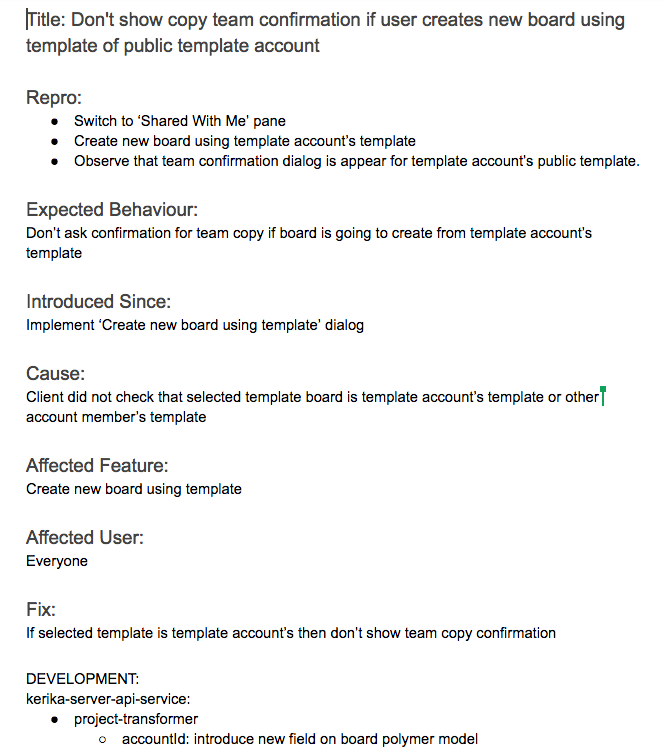
Before any bug is fixed, our developers always add a standard document we call Repro, Cause and Fix as an attachment to the card:

Repro, Cause and Fix

This document is added no matter how trivial the bug.

Why? Because, on average our team goes through about 30-40 cards a week, and has been doing so for years now.  If we don’t document our analysis now, we will never recall our logic in the future.

Repro, Cause and Fix

Repro, Cause and Fix

Our team adopts a consistent layout of the Repro, Cause & Fix document, which we adhere to even for trivial bugs:

The Repro Steps are the steps needed to trigger the bug: usually they consist of a specific sequence of actions taken by a user that cause the bug to appear, but they can also consist of a sequence of events in the background, like specific server activity or memory/CPU utilization conditions, or overall network traffic, that trigger the bug.

The Expected Behavior helps clarify the developer’s understanding of the how the software should behave in this situation.  It’s not uncommon for a developer who is new to the team to misunderstand how a particular feature is expected to behave, which could lead to more bugs being introduced.  Clarifying Expected Behavior in this document provides an easy way for the Product Owner and the Team Lead to confirm that the developer is not going to go down the wrong track.

Introduced Since: our developers try to pinpoint the specific point in the software’s life where the bug was introduced.  This helps the developers reflect upon how errors are created in the first place: the blind spots lie in their analytical patterns that need to be strengthened.

(In this particular example, the developer has been able to point back to some of her own work on an earlier feature implementation that caused this bug to appear.)

Root Cause is not the same as the Repro Steps.  While a specific sequence of actions or events may reliably display the effects of a particular bug,  they only provide the starting point for the analysis; the Root Cause itself is discovered only when the developer examines the code in detail and determines exactly what is breaking.

Affected Feature: all of our code goes through code review, which we view as one of the most effective QA processes we could adopt, but it can be very challenging when you are processing 30 cards each week, each affecting a different part of the software.

Identifying the Affected Feature helps with the code review process, since the reviewer can consider the bug fix in the larger context of the feature that’s being modified.  Without this, it is doubtful that we could review so many changes each week.

Affected User: in most cases, this is “everyone” we offer the same Kerika  to all our users, whether they are on free trials or have paid for professional subscriptions.

Identifying Affected Users is useful, nonetheless, when dealing with bugs that are browser-specific, or service-specific: for example, determining that a particular bug affects only Kerika+Google users, or only Internet Explorer users.

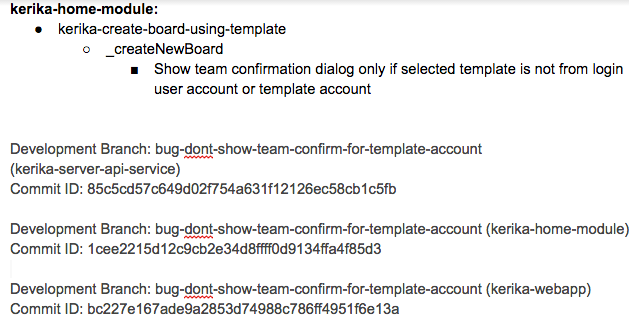
The Fix: OK, this might seem obvious, but this section really refers to identifying the specific modules in the software that will be changed as a result of the bug fix being applied.

Like many others, we use Git for managing our source code — along with Maven for builds — since our server environment is all Java-based.

Fix
The Fix

The Fix section usually includes references to Git checkins: this helps with future bug fixes, by making it easy to traceback sources of new bugs — part of the Introduced Since section described above.

We use separate Git branches for each feature that we develop so that we can decide precisely what gets released to production, and what is held back for future work.

This helps with the Show & Tell phase of our workflow, when the developers demonstrate the output of the Sprint to the Product Owner, who has the option to accept or reject specific features (i.e. cards on the Scrum Board).

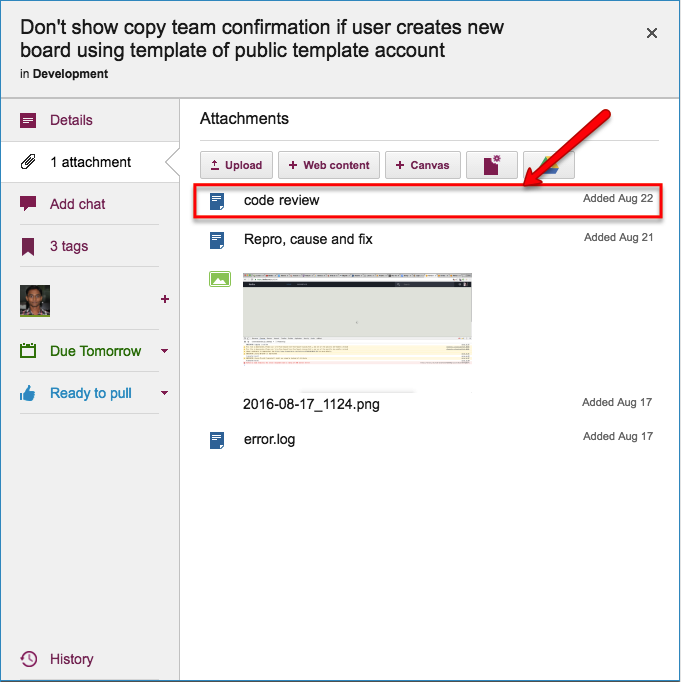
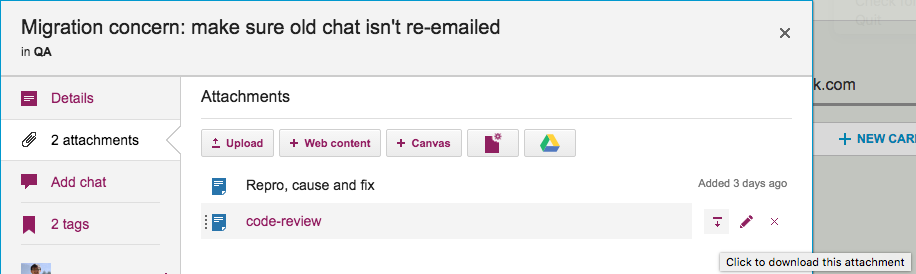
Code Review

All of our code goes through code review, no matter how trivial the change:

Code review
Code review

We really believe that code reviews are one of the most effective QA practices we could adopt: having a second pair of eyes look over code can very considerably reduce the chances of new bugs being introduced.

So…

Kerika is great for distributed software teams: our own team is spread out between Seattle and India (roughly 10,000 miles apart!), and all of our work is done using Kerika for task management, content management and team collaboration.

Of course, an added benefit of “eating our own dogfood” is that we are highly motivated to make sure Kerika is the best tool there is for distributed teams :-)


Bug, fixed: when you have a lot of boards open, you could run into problems

We found and fixed a problem that a small number of users were experiencing: if you had a lot of boards open at the same time — say around 40 — and you then used the URL of any of these boards in some context, e.g. by including it in a chat message, you could run up into a “502 Bad Gateway” server error.

This really was an unexpected edge case — we had never considered that people might be working on 40 boards at the same time, nor that they would routinely have so many boards open, but it turns out that for professional services firms that use Kerika to manage their different client engagements, this was actually not that unusual…

The underlying problem was obscure: Kerika uses a cookie to keep track of which boards you currently have open.

This helps us restore your session perfectly if you exit Kerika and then return, e.g. by simply closing your browser or actually logging out and logging back in.

In the scenario where a user might have had 40 boards open, the cookie was becoming really, really large (as far as cookies go), and our Web server wasn’t set up to handle such large cookies.

Fixed.

Bug, fixed: adding SharePoint URLs as attachments on cards

Thanks to one of our users at Washington State’s Employment Security Department, we found and fixed a bug that was causing problems when users tried to add SharePoint URLs as attachments on cards, for Task Boards and Scrum Boards.

The problem turned out to be in some code we have that tries to check whether a user is entering a valid-looking URL.  SharePoint’s URLs are somewhat unusual in that they include the “{” and “}” characters, which most other web servers don’t use.

Our old code was treating these characters as invalid, thereby rejecting URLs coming from SharePoint.

This has been fixed now.

Thanks!

Feature, restored: simple download of files previewed within the browser

We now allow users to sign up for Kerika directly, by using any email address. This version is powered by the Box Platform, which allows us to make good use of Box’s cloud storage technology while presenting a simple user interface for our own users.

Another cool feature from Box that we had integrated, as part of this new service, was to use their browser-based preview functionality — which came to Box as a result of their 2014 purchase of Crocodoc.

We use this preview feature with a simple IFRAME integration, which means we don’t add anything to it ourselves, but one downside of this approach is that if Box removes something from their preview capability, it can disappear from Kerika also.

This happened recently when they took away a button that allowed for a quick download of a file that was being previewed.

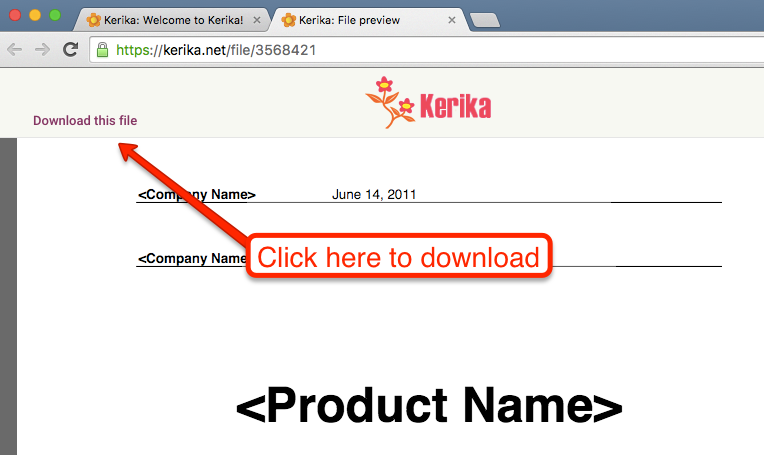
We have fixed this by adding our own “Download file” link within the Box Preview:

Downloading previewed files